Select Language

  • Menu
  • Machines
    • Machines
    • Back
    • Drill Lines
      • Drill Lines
      • Back
      • PeddiSubX-1120
      • Peddi XDM-630
      • Advantage-2
      • BDL-1250/9D
    • Plate Processors
      • Plate Processors
      • Back
      • HSFDB-C
      • HSFDB-B
      • FPB-1800
    • Angle Lines
      • Angle Lines
      • Back
      • Anglemaster-663
      • Anglemaster-HD
      • Anglemaster-643
    • Thermal Cutting
      • Thermal Cutting
      • Back
      • PeddiBot-1250
      • PeddiBot-1250ST
      • PeddiBot-1200
      • ABCM-1250
    • Robotic Welding
      • Robotic Welding
      • Back
      • PeddiAssembler
    • Layout Marking
      • Layout Marking
      • Back
      • PeddiWriter
    • Band Saws
      • Band Saws
      • Back
      • DG-1250
      • DG-1100
      • 1250-510
      • 510-DGA
    • Material Handling
      • Material Handling
      • Back
      • PeddiRotator
    • Shot Blasters
      • Shot Blasters
      • Back
      • PeddiBlast
    • Ironworkers
      • Ironworkers
      • Back
      • PeddiMax
      • PeddiWorker
      • PeddiCat
    • Laser Cutting
    • Used Machinery
  • Software
    • Software
    • Back
    • Raptor
  • Technology
  • About
    • About
    • Back
    • About Us
    • Clients
    • Partners
    • Industries We Serve
    • Careers
  • Media
    • Media
    • Back
    • Videos
    • News
    • Magazine
    • Photos
    • eNews Signup
  • Shop
    • Shop
    • Back
    • Apparel
    • Band Saw Blades
    • Carbide Tooling
    • Coolants
    • Drill Bits
    • Laser Consumables
    • Plasma Consumables
    • Punches
    • Dies
    • Tool Holders & Accessories
  • Help
    • Help
    • Back
    • Remote Assistance
    • Training Videos
  • Contact
    • Contact
    • Back
    • Sales
    • Support
    • Parts
    +1 815 937 3800 info@peddinghaus.com
  • Machines
    • Drill Lines
    • Plate Processors
    • Angle Lines
    • Thermal Cutting
    • Robotic Welding
    • Layout Marking
    • Band Saws
    • Material Handling
    • Shot Blasters
    • Ironworkers
    • Laser Cutting
    • Used Machinery
    close
     

    PeddiSubX-1120

    Carbide 3 Spindle Drill

    Peddi XDM-630

    Carbide 3 Spindle Drill

    Advantage-2

    Carbide 3 Spindle Drill

    BDL-1250/9D

    9 Spindle Drill

    Powerful Drill Lines To Get The Job Done Right

    We Build The Strongest Machines

    View All Drill Lines Sales Expert
     

    HSFDB-C

    Maximum Plate Thickness: 4"

    HSFDB-B

    Maximum Plate Thickness: 3"

    FPB-1800

    Maximum Plate Thickness: 1-1/4"

    Powerful Plate Processors To Get The Job Done Right

    We Build The Strongest Machines

    View All Plate Processors Sales Expert
     

    Anglemaster-663

    Angle Capacity: 6.3" x 6.3" x 3/4"

    Anglemaster-HD

    Angle Capacity: 8" x 8" x 1"

    Anglemaster-643

    Angle Capacity: 6" x 6" x 5/8"

    Powerful Angle Lines To Get The Job Done Right

    We Build The Strongest Machines

    View All Angle Lines Sales Expert
     

    PeddiBot-1250

    Type of Thermal Cutting: Plasma and Oxy-Fuel

    PeddiBot-1250ST

    Type of Thermal Cutting: Plasma

    PeddiBot-1200

    Type of Thermal Cutting: Plasma

    ABCM-1250

    Type of Thermal Cutting: Oxy-Fuel

    Powerful Thermal Cutting To Get The Job Done Right

    We Build The Strongest Machines

    View All Thermal Cutting Sales Expert
     

    PeddiAssembler

    Profile Capacity: 16" x 30" x 60'

    Powerful Robotic Welding To Get The Job Done Right

    We Build The Strongest Machines

    Sales Expert
     

    PeddiWriter

    Plasma ArcWriting

    Powerful Layout Marking To Get The Job Done Right

    We Build The Strongest Machines

    Sales Expert
     

    DG-1250

    Miter Cut Sawing

    DG-1100

    Miter Cut Sawing

    1250-510

    Straight Cut Band Saw

    510-DGA

    Miter Cut Sawing

    Powerful Band Saws To Get The Job Done Right

    We Build The Strongest Machines

    View All Band Saws Sales Expert
     

    PeddiRotator

    360° Rotation

    Powerful Material Handling To Get The Job Done Right

    We Build The Strongest Machines

    Sales Expert
     

    PeddiBlast

    Roller Conveyor Blast Machine

    Powerful Shot Blasters To Get The Job Done Right

    We Build The Strongest Machines

    Sales Expert
     

    PeddiMax

    Tonnage: 140 Tons

    PeddiWorker

    Tonnage: 100 Tons

    PeddiCat

    Tonnage: 55 Tons

    Powerful Ironworkers To Get The Job Done Right

    We Build The Strongest Machines

    View All Ironworkers Sales Expert
  • Software
    • Raptor
  • Technology
  • About
    • About Us
    • Clients
    • Partners
    • Industries We Serve
    • Careers
  • Media
    • Videos
    • News
    • Magazine
    • Photos
    • eNews Signup
  • Shop
    • Apparel
    • Band Saw Blades
    • Carbide Tooling
    • Coolants
    • Drill Bits
    • Laser Consumables
    • Plasma Consumables
    • Punches
    • Dies
    • Tool Holders & Accessories
  • Help
    • Remote Assistance
    • Training Videos
Contact
  • Sales
  • Support
  • Parts

Select Language

Search
Filter Videos By
  • Machines
    • Drill Lines
    • Plate Processors
    • Angle Lines
    • Thermal Cutting
    • Robotic Welding
    • Layout Marking
    • Band Saws
    • Material Handling
    • Shot Blasters
  • Software
  • Customers
  • Partners
  • Events
  • News
  • How To
All Videos
Search Video Gallery
Watching:File Menu Options in Raptor
 
Channel: How To

File Menu Options in Raptor

Published 11/11/2020

Learn all about the file menu options in Raptor.

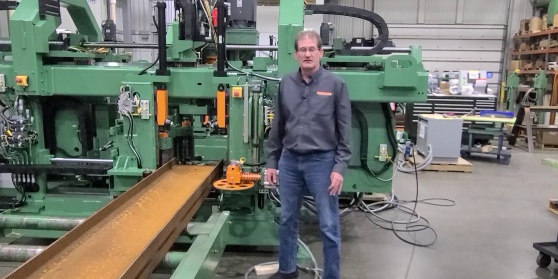
Hello again, I'm Duane Bates, the pre-installation and training department manager at Peddinghaus. I will be digging into the options that are in the file menu in Raptor.

The first available selection is "new". This is used when you need to create a part in Raptor. If you have to create a part from a drawing, this would be the choice you would use. "Open" is used to open parts from the database that is located locally on the PC or machine control. This is not how you import a part file that is located on the server. New multipart is used to create a multipart out of single parts. A multipart is one or more parts being made out of a stalk length of material. The single parts that will be included in the multipart must be saved in the local database. Open multipart is for opening a multipart that has been saved in your local database.

ave is for saving any changes you have made to your parts. Save settings allows you to save a copy of every setting in Raptor. This will allow you to make a backup of your settings, or to save a copy so you can take it to another PC. Load settings allows us to load the settings that were saved using the "save settings" options. Import Peddimat options is only used if you are upgrading a machine from Peddimat to Raptor. If so, you can import the Peddimat machine config file to transfer the settings from Peddimat to Raptor. The selections under "import" are used to import parts into Raptor. They can come from several different origins.

The import from Tekla function is for connecting Raptor directly to a Tekla detailing model. With this option, Raptor is going into the model and getting the information for each of the parts that are selected to be imported. For this to work Raptor and Tekla must be running on the same PC. You must open Tekla first. XML3D files are files that have been previously been exported from Raptor. This is the standard Raptor file type. DSTV is the long-standing industry standard for the structural steel industry. This file type is created by most of the detailing software in the industry. The file extension for these files will be either .NC or .NC1. The Peddimat option is for importing parts from our legacy programing software known as Peddimat. The SDS2 option is not for importing DSTV's that have been created in SDS2. It is for importing files from SDS2 with a .XML extension. These files are just like a DSTV except they also have a GUID, or global unique ID for the part from the detailing model.

DXF stands for digital exchange format. This is the file type used to import a file or part from a CAD program. IDSTV+ is primarily used to communicate with different management software that is used in the structural steel industry. In this case, it will be used to import nested part information from those programs. IDSTV+ files contain all of the information for each of the parts in the nested part or multipart including the GUID for each of those parts. The canam file import function was designed specifically for canam.

Import multipart, multipart files are files that contain nested or batched parts on a stalk length material. These files may contain a single part or multiple parts. You will use the import multipart options to import multiparts into Raptor. XML3DM is a file that is a Raptor multipart. This is a multipart that was previously created within Raptor. XNC is for a specific software from Germany. Most customers will not need this option. DSTV+ is used for communicating with the management software that was previously mentioned. A DSTV+ file contains nested part information, much like an IDSTV+ file does. The difference is that a DSTV+ file does not contain the part GUID.

Import CNC function is an option that customers will not see. This option is used by tech support to help troubleshoot any issues you may be having. If you are experiencing an issue with running a part file, you can send the .MPF file to tech support. They will be able to extract the CNC code, part file and all of the Raptor settings from where the CNC was created. This will allow them to assist you with troubleshooting your issues. The last option is exit. Exit is one of the ways you have to close Raptor. The other is to click the "X" in the top right corner of the screen. On a machine control, you will not see the exit option, nor will you have the X in the corner. Once Raptor is open it will stay open until you shut down the control.

For any other service-related questions please contact Peddinghaus support at 1-815-937-3800 and press 2 for technical assistance. Visit our website at www.peddinghaus.com for more how-to videos and additional machine information.

Current Channel: How To
PCDC Encoder Calibration
Watch
How To
DXF Import
DXF Import
Watch
How To
XML 3D Export
XML 3D Export
Watch
How To
Export Peddimat in Raptor
Watch
How To
SDS2 Import
SDS2 Import
Watch
How To
Tekla Import
Tekla Import
Watch
How To
IDSTV+ Import
IDSTV+ Import
Watch
How To
ISDTV+ Export
ISDTV+ Export
Watch
How To
Edit View Menus in Raptor
Watch
How To
Welds and Weld Filters in Raptor
Watch
How To
Import Peddimat in Raptor
Watch
How To
Import DSTV in Raptor
Watch
How To
Creating Macros in Raptor
Watch
How To
Export DSTV in Raptor
Watch
How To
Scribes and Scribe Filters Tabs in Raptor
Watch
How To
Manage and General Filters Tabs in Raptor
Watch
How To
Holes and Popmarks Tabs in Raptor
Watch
How To
The "Advanced Settings" Tab Overview in Raptor
Watch
How To
Copes, Cope Filters and Advanced Tabs in Raptor
Watch
How To
How To Get Remotely Connected To Support - Windows 7
Watch
How To
How To Get Remotely Connected To Support - Windows XP
Watch
How To
What Information Do I Need Before Contacting Support
Watch
How To
How Do I Access Prints and Manuals For My Machine
Watch
How To
Tapping a Profile in Raptor for Operation on Advantage-2
Watch
How To
Countersinking in Raptor for Operation on Advantage-2
Watch
How To
Milling a Profile in Raptor for Operation on Advantage-2
Watch
How To
DG-1100 Breaking in a Saw Blade
Watch
How To
DG-1100 Saw Speeds and Feeds
Watch
How To
Specialty Tool Types in Peddimat
Watch
How To
Peddimat Speeds and Feeds
Watch
How To
Raptor Speeds and Feeds
Watch
How To
 

Start Your Most Profitable Partnership Today!

Request Demo Request Quote Request Visit Request Call

Stay Connected

Peddinghaus
Stronger Than Steel

Headquarters

300 N Washington Ave.
Bradley, IL 60915

T | +1 815 937 3800

E | info@peddinghaus.com

Support (USA & CAN): +1 815 937 3800 Press 2

Contact Us

Machines

  • Laser Cutting
  • Drill Lines
  • Plate Processors
  • Angle Lines
  • Thermal Cutting
  • Robotic Welding
  • Layout Marking
  • Band Saws
  • Material Handling
  • Shot Blasters
  • Ironworkers

Useful Links

  • Software
  • Technology
  • Videos
  • News
  • Magazine
  • Photos
  • Careers
  • Shop

Help

  • Remote Assistance
  • Training Videos

Contact

  • Sales
  • Support
  • Parts

United States © 2025. Peddinghaus Corporation. All Rights Reserved. | Privacy Policy

  • National Safety Council
  • American Institute of Steel Construction
  • American Welding Society
  • British Constructional Steelwork Association
  • Canadian Institute of Steel Construction
  • Fabricators & Manufacturers Association, International
  • Steel for Life