Select Language

  • Menu
  • Machines
    • Machines
    • Back
    • Drill Lines
      • Drill Lines
      • Back
      • PeddiSubX-1120
      • Peddi XDM-630
      • Advantage-2
      • BDL-1250/9D
    • Plate Processors
      • Plate Processors
      • Back
      • HSFDB-C
      • HSFDB-B
      • FPB-1800
    • Angle Lines
      • Angle Lines
      • Back
      • Anglemaster-663
      • Anglemaster-863
      • Anglemaster-643
    • Thermal Cutting
      • Thermal Cutting
      • Back
      • PeddiBot-1250
      • PeddiBot-1250ST
      • PeddiBot-1200
      • ABCM-1250
    • Robotic Welding
      • Robotic Welding
      • Back
      • PeddiAssembler
    • Layout Marking
      • Layout Marking
      • Back
      • PeddiWriter
    • Band Saws
      • Band Saws
      • Back
      • DG-1250
      • DG-1100
      • 1250-510
      • 510-DGA
    • Material Handling
      • Material Handling
      • Back
      • PeddiRotator
    • Shot Blasters
      • Shot Blasters
      • Back
      • PeddiBlast
    • Ironworkers
      • Ironworkers
      • Back
      • PeddiMax
      • PeddiWorker
      • PeddiCat
    • Laser Cutting
    • Used Machinery
  • Software
    • Software
    • Back
    • Raptor
  • Technology
  • About
    • About
    • Back
    • About Us
    • Clients
    • Partners
    • Industries We Serve
    • Careers
  • Media
    • Media
    • Back
    • Videos
    • News
    • Magazine
    • Photos
    • eNews Signup
  • Shop
    • Shop
    • Back
    • Apparel
    • Band Saw Blades
    • Carbide Tooling
    • Coolants
    • Drill Bits
    • Laser Consumables
    • Plasma Consumables
    • Punches
    • Dies
    • Tool Holders & Accessories
  • Help
    • Help
    • Back
    • Remote Assistance
    • Training Videos
  • Contact
    • Contact
    • Back
    • Sales
    • Support
    • Parts
    +1 815 937 3800 info@peddinghaus.com
  • Machines
    • Drill Lines
    • Plate Processors
    • Angle Lines
    • Thermal Cutting
    • Robotic Welding
    • Layout Marking
    • Band Saws
    • Material Handling
    • Shot Blasters
    • Ironworkers
    • Laser Cutting
    • Used Machinery
    close
     

    PeddiSubX-1120

    Carbide 3 Spindle Drill

    Peddi XDM-630

    Carbide 3 Spindle Drill

    Advantage-2

    Carbide 3 Spindle Drill

    BDL-1250/9D

    9 Spindle Drill

    Powerful Drill Lines To Get The Job Done Right

    We Build The Strongest Machines

    View All Drill Lines Sales Expert
     

    HSFDB-C

    Maximum Plate Thickness: 4"

    HSFDB-B

    Maximum Plate Thickness: 3"

    FPB-1800

    Maximum Plate Thickness: 1-1/4"

    Powerful Plate Processors To Get The Job Done Right

    We Build The Strongest Machines

    View All Plate Processors Sales Expert
     

    Anglemaster-663

    Angle Capacity: 6.3" x 6.3" x 3/4"

    Anglemaster-863

    Angle Capacity: 8" x 8" x 1"

    Anglemaster-643

    Angle Capacity: 6" x 6" x 5/8"

    Powerful Angle Lines To Get The Job Done Right

    We Build The Strongest Machines

    View All Angle Lines Sales Expert
     

    PeddiBot-1250

    Type of Thermal Cutting: Plasma and Oxy-Fuel

    PeddiBot-1250ST

    Type of Thermal Cutting: Plasma

    PeddiBot-1200

    Type of Thermal Cutting: Plasma

    ABCM-1250

    Type of Thermal Cutting: Oxy-Fuel

    Powerful Thermal Cutting To Get The Job Done Right

    We Build The Strongest Machines

    View All Thermal Cutting Sales Expert
     

    PeddiAssembler

    Profile Capacity: 16" x 30" x 60'

    Powerful Robotic Welding To Get The Job Done Right

    We Build The Strongest Machines

    Sales Expert
     

    PeddiWriter

    Plasma ArcWriting

    Powerful Layout Marking To Get The Job Done Right

    We Build The Strongest Machines

    Sales Expert
     

    DG-1250

    Miter Cut Sawing

    DG-1100

    Miter Cut Sawing

    1250-510

    Straight Cut Band Saw

    510-DGA

    Miter Cut Sawing

    Powerful Band Saws To Get The Job Done Right

    We Build The Strongest Machines

    View All Band Saws Sales Expert
     

    PeddiRotator

    360° Rotation

    Powerful Material Handling To Get The Job Done Right

    We Build The Strongest Machines

    Sales Expert
     

    PeddiBlast

    Roller Conveyor Blast Machine

    Powerful Shot Blasters To Get The Job Done Right

    We Build The Strongest Machines

    Sales Expert
     

    PeddiMax

    Tonnage: 140 Tons

    PeddiWorker

    Tonnage: 100 Tons

    PeddiCat

    Tonnage: 55 Tons

    Powerful Ironworkers To Get The Job Done Right

    We Build The Strongest Machines

    View All Ironworkers Sales Expert
  • Software
    • Raptor
  • Technology
  • About
    • About Us
    • Clients
    • Partners
    • Industries We Serve
    • Careers
  • Media
    • Videos
    • News
    • Magazine
    • Photos
    • eNews Signup
  • Shop
    • Apparel
    • Band Saw Blades
    • Carbide Tooling
    • Coolants
    • Drill Bits
    • Laser Consumables
    • Plasma Consumables
    • Punches
    • Dies
    • Tool Holders & Accessories
  • Help
    • Remote Assistance
    • Training Videos
Contact
  • Sales
  • Support
  • Parts

Select Language

Search
Filter Videos By
  • Machines
    • Drill Lines
    • Plate Processors
    • Angle Lines
    • Thermal Cutting
    • Robotic Welding
    • Layout Marking
    • Band Saws
    • Material Handling
    • Shot Blasters
  • Software
  • Customers
  • Partners
  • Events
  • News
  • How To
All Videos
Search Video Gallery
Watching:Scribes and Scribe Filters Tabs in Raptor
 
Channel: How To

Scribes and Scribe Filters Tabs in Raptor

Published 06/16/2020

Learn all about scribes and scribe filters tabs in Raptor.

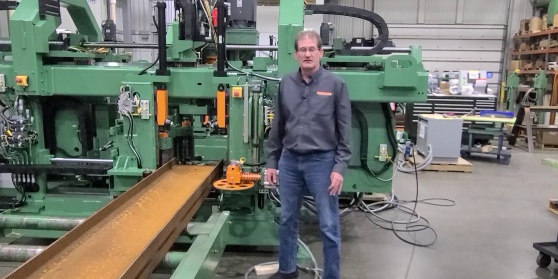
I hope you're having a great day. I'm Dwayne Bates, the pre-installation and training department manager at Peddinghaus.

The topic of this video is corrections in Raptor. I'll be focusing on the Scribes and Scribe Filters tabs.

On the Scribes tab, the first thing we see is corrected scribes. What these two selections refer to is any scribes that might be in an area considered to be a safety distance--any area near the flange, near a vertical leg, or something like that, where the scribe can not get into that area.

We have two choices. One would be to move lines. The other would be to cut lines. Move lines will move those scribes outside of that safety distance so that it can be scribed. Cut lines will just cut anything off that is in the safety distance. My normal selection is cut lines.

The next selection, Don't Scribe Closed Loop Copes, refers to any web penetrations, things like that, that are internal to the surface that you may want to--that were originally seen as a cope, and now you're turning them into scribes. If those copes have already been done, you may want to tell it to not scribe those, so that the scribe itself does not fall into that hole that's already been coped out.

Move Text Scribes for Safety Distances-- this simply moves any text that's in the safety distance out of the area, out of the safety distance, so that it can be scribed. Generally, you do have that checked. The Minimum Text Scribe Height--this will look at any text scribes on the part and will automatically upsize them to this value. In this case, I have it set for 1/2 inch. It will automatically upsize any scribes that might be smaller than that up to the 1/2 inch value.

The next choice create saw scribes for copes from miters. In case you have a miter that cannot be cut, this will, if you have this selected, will add a scribe line to the flange of the beam and put the degree of that cut on the side of the flange as well, so that you know exactly what that code is supposed to be. Generally, we're taking care of this now on our Miters tab that you can see in the separate video regarding miters.

The next tab we have is the Scribe Filters tab. On the Scribe Filters tab, you'll notice that you have different tabs for all of the profiles. Make sure that you go through and set each of these tabs accordingly so that you're placing the piece mark and the name settings exactly where you want them, and all of your other settings are changed and set accordingly. So we're going to go ahead and set the angle settings. All of these are identical, so once you know one tab, you know the other five.

So the first thing we have are the named settings, and we have either part name or assembly name settings. In most cases, you're going to want to make sure that your part name settings are selected. The only way that you can have assembly name settings is if you're importing the parts directly from Tekla. So we select part name settings. We tell it where or on what surface we want that scribe to be, how large we want these letters to be, and then what information we want to include. Maybe I want to include the part name. Maybe I want to include the project number or the job number--any of those things. We could also include the assembly or the lot number or the lot name if we chose to. There will be a space left between these two values, so whatever the part name might be, and then there'll be some space, and then whatever the project number is. You can add anything before it, in between the pieces, or after the pieces if you'd like as well, simply by putting it in these boxes. And it will be scribed on all parts that you run corrections on.

The auto position box should always be checked. What this will do is this will move the scribe so that it is not over a cope. There's a block cope on the end of the beam. It will move it so that it's not scribed in that area. The position of the scribe can either be based on the start of the scribe or the center of the scribe. My personal selection is start, but you may choose center as well, whichever fits your preference. You can tell it to be a delta or a set dimension from the end of the part.

We're going to make it 12 inches from the end, or we can do it a percentage of the overall length. I'm going to choose to do 12 inches from the end. We can also set the gauge value of that scribe. This is the vertical dimension across the surface. We can either do it, once again, a delta dimension, a set dimension from the edge, or we can do it a percentage of the overall height as well. And maybe I'm going to say 25%, something like that. Either way-- whatever works for what you're trying to accomplish.

Once you have these set, if you do want to set your assembly name settings, you can select this Copy button. And what that does is it copies all of your settings over to the assembly name settings, and then you would simply change that to assembly. And now, both settings are set up the way you want them.

The next thing we have here is the Scribe Center Mark. This will scribe a center mark either on the lead edge of the part or the trail edge of the part. And this simply tells you how far from the end you want to scribe that.

The style of your scribes, when you're doing layout for, say, stiffeners or anything like that, or shear tabs, the style of the scribe can either be full scribes, pop marks, or corner scribes. A full scribe will give you, let's say, the full outline of a stiffener. A pop mark will just put pop marks at the corners of the rectangular scribe, and then corner scribes would just give you a short distance, a short length, at each one of the corners of the stiffener, in this case, in our example. And then the length of that would need to be added right here. How long do we want those lines to be? So I'm going to do corner scribes, and I'm going to do my corners at a 1/2 inch length. That is very normal. This is the normal way we would do it

if we were doing this using a SignoScript. So if we were using a SignoScript tool in one of our drill lines or something, we would use corner scribes. And generally, a 1/2 inch corner length is pretty normal, although you can make that shorter or longer if you please.

Down here in the bottom left corner, we have the safety distance from flange. This refers to--only refers to the Peddiwriter, and basically, the flange height above web would be the length of the torch itself, or just slightly less than the length of the torch. And then if you have a flange height that's less than that length, you'll have one particular safety distance here.

If you have a flange height that's taller than that, you need to have a different safety distance. So you might have eight inches here approximately, and maybe your safety distance is 7/8, and maybe your safety distance above that is then 2 and 3/4. So those values may--that may be the type of value that you would have in these three boxes, and like I said, this is only for the Peddiwriter.

If you wanted to use a different safety distance for the underside, you can as well. So if you choose to give it some different values, you can check that box and then add that in there. Here, with the safety distance from edges, we're pulling all scribes back away from the edge so that the scribe tool does not run off the edge and cause damage.

If you want to scribe your weld symbols, you can check this box. We'll talk more about the weld symbols in another video in just a little while.

You can also turn your copes into scribes. Simply by checking this box, your copes are now scribes. However, let's say I have my scribe style set to corner scribes. That would mean that any layout scribes that I have are then going to be corner scribes, where you're just going to see the corners of those rectangular scribes. If I choose Copes as Scribes down below, the scribes for my copes would still be full scribes. You would get as much of that scribe as you possibly could based on safety distances and things like that.

As much of the scribe that the scribe tool can actually do, that's what this is going to provide. Once I select Include Copes as Scribes, it now turns your cope scribes into corner scribes as well. So this one turns them into scribes. This particular choice here turns it into whatever style we have chosen. So that's the difference between these two checkboxes.

The last thing we have on this tab is the split scribes for 24 inch window. This is only necessary on the Peddiwriter. The Peddiwriter works within a 24 inch window, and if you have a scribe outside that, you would need to split that. So just simply check that box, and that would be normal. If I was working on a Peddiwriter, I would normally have this selected.

That's all for Scribes and Scribe Filters. Thank you.

For any other service related questions, please contact Peddinghaus support at 1-815-937-3800 and press 2 for technical assistance. Or visit our website at www.peddinghaus.com for more how-to videos and additional machine information.

Current Channel: How To
PCDC Encoder Calibration
Watch
How To
DXF Import
DXF Import
Watch
How To
XML 3D Export
XML 3D Export
Watch
How To
Export Peddimat in Raptor
Watch
How To
SDS2 Import
SDS2 Import
Watch
How To
Tekla Import
Tekla Import
Watch
How To
IDSTV+ Import
IDSTV+ Import
Watch
How To
ISDTV+ Export
ISDTV+ Export
Watch
How To
Edit View Menus in Raptor
Watch
How To
File Menu Options in Raptor
Watch
How To
Welds and Weld Filters in Raptor
Watch
How To
Import Peddimat in Raptor
Watch
How To
Import DSTV in Raptor
Watch
How To
Creating Macros in Raptor
Watch
How To
Export DSTV in Raptor
Watch
How To
Manage and General Filters Tabs in Raptor
Watch
How To
Holes and Popmarks Tabs in Raptor
Watch
How To
The "Advanced Settings" Tab Overview in Raptor
Watch
How To
Copes, Cope Filters and Advanced Tabs in Raptor
Watch
How To
How To Get Remotely Connected To Support - Windows 7
Watch
How To
How To Get Remotely Connected To Support - Windows XP
Watch
How To
What Information Do I Need Before Contacting Support
Watch
How To
How Do I Access Prints and Manuals For My Machine
Watch
How To
Tapping a Profile in Raptor for Operation on Advantage-2
Watch
How To
Countersinking in Raptor for Operation on Advantage-2
Watch
How To
Milling a Profile in Raptor for Operation on Advantage-2
Watch
How To
DG-1100 Breaking in a Saw Blade
Watch
How To
DG-1100 Saw Speeds and Feeds
Watch
How To
Specialty Tool Types in Peddimat
Watch
How To
Peddimat Speeds and Feeds
Watch
How To
Raptor Speeds and Feeds
Watch
How To
 

Start Your Most Profitable Partnership Today!

Request Demo Request Quote Request Visit Request Call

Stay Connected

Peddinghaus
Stronger Than Steel

Headquarters

300 N Washington Ave.
Bradley, IL 60915

T | +1 815 937 3800

E | info@peddinghaus.com

Support (USA & CAN): +1 815 937 3800 Press 2

Contact Us

Machines

  • Laser Cutting
  • Drill Lines
  • Plate Processors
  • Angle Lines
  • Thermal Cutting
  • Robotic Welding
  • Layout Marking
  • Band Saws
  • Material Handling
  • Shot Blasters
  • Ironworkers

Useful Links

  • Software
  • Technology
  • Videos
  • News
  • Magazine
  • Photos
  • Careers
  • Shop

Help

  • Remote Assistance
  • Training Videos

Contact

  • Sales
  • Support
  • Parts

United States © 2025. Peddinghaus Corporation. All Rights Reserved. | Privacy Policy

  • National Safety Council
  • American Institute of Steel Construction
  • American Welding Society
  • British Constructional Steelwork Association
  • Canadian Institute of Steel Construction
  • Fabricators & Manufacturers Association, International
  • Steel for Life